

Nissan Altima Warning Lights Dashboard Icons
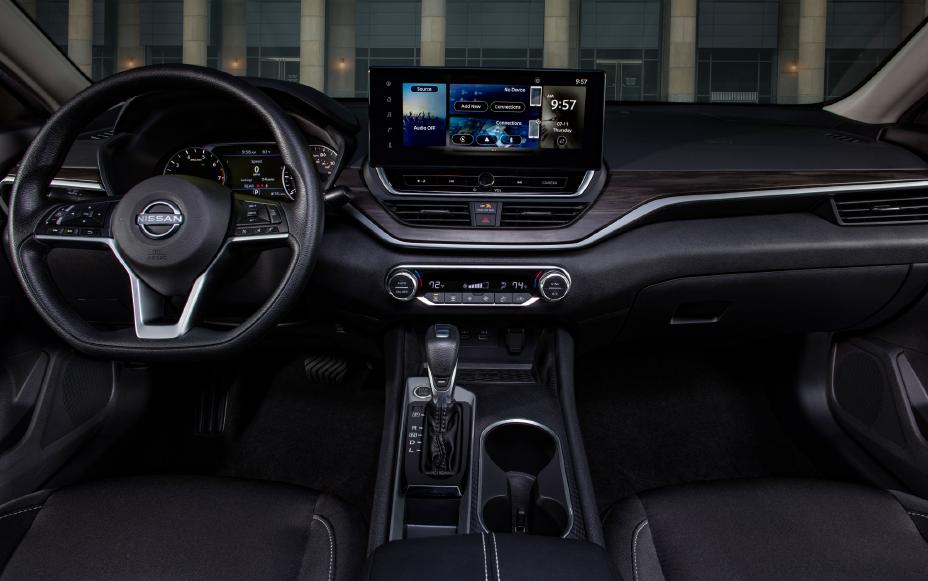
Your Nissan Altima dashboard icons are designed to quickly communicate what is happening with your vehicle. These symbols can let you know when a system is operating normally, when your vehicle needs attention, or when you should stop driving and have a problem inspected. Nissan uses different colors to help drivers understand the urgency of each warning:
- Green or blue icons: Usually indicate that a feature or system is active.
- Yellow or amber icons: Indicate a warning or a system that may need inspection.
- Red icons: Indicate a serious issue that may require immediate attention.
Red Nissan Altima Dashboard Icons
Red warning lights usually indicate problems that should be addressed as soon as possible. Some may require you to stop driving immediately.
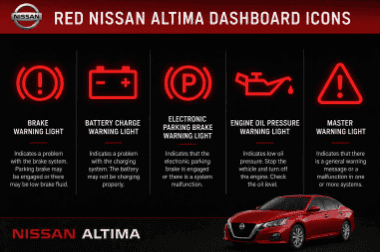
Brake Warning Light
Dashboard icon looks like: The word “BRAKE” or an exclamation point inside a circle.
The brake warning light can indicate that the parking brake is engaged or that there is a problem with the braking system. If the light turns on when the ignition is switched on, it may simply indicate that the parking brake is active.
However, if the light stays on while driving, it may indicate low brake fluid or another brake system issue.
What to do:
- Make sure the parking brake is fully released.
- Check the brake fluid level.
- If the fluid level is normal but the light remains on, have the braking system inspected.
A brake warning light should never be ignored because braking problems can affect vehicle safety.
Battery Charge Warning Light
Dashboard icon looks like: A car battery symbol with positive (+) and negative (-) signs.
The battery charge warning icon indicates a possible issue with your vehicle’s charging system. While many drivers assume this light means the battery itself has failed, it can also point to problems with the alternator or charging components.
What to do:
- Turn off unnecessary electrical accessories.
- Safely stop the vehicle if the light remains on.
- Have the charging system inspected.
Driving with a charging system problem could eventually cause the engine to stop if the battery loses power.
Electronic Parking Brake Warning Light
Dashboard icon looks like: A “P” inside a circle.
This Nissan Altima dashboard icon appears when the electronic parking brake system is operating. It normally turns off after the engine starts and the parking brake is released.
If the light remains illuminated, it may indicate that the parking brake has not been released or that there is a malfunction.
What to do:
- Confirm the parking brake is released.
- Avoid driving if the warning remains active.
- Schedule an inspection if the system does not operate correctly.
Engine Oil Pressure Warning Light
Dashboard icon looks like: An oil container with a drop of oil.
The engine oil pressure warning light is one of the most important Nissan Altima dashboard icons because it indicates a possible loss of oil pressure.
This warning does not necessarily mean your oil level is low. Oil pressure problems can prevent the engine from receiving proper lubrication and may cause serious damage.
What to do:
- Pull over safely.
- Turn off the engine immediately.
- Check the oil level if it is safe to do so.
- Contact a repair professional if the warning remains.
Avoid continuing to drive with this warning light illuminated.
Master Warning Light
Dashboard icon looks like: An exclamation point inside a triangle.
The master warning light alerts you that another warning message may be displayed on your vehicle information screen.
Possible causes include:
- Parking brake warnings.
- Door-open warnings while driving.
- Driver assistance system alerts.
What to do:
Check the vehicle information display for additional details and address the listed warning.
Yellow Nissan Altima Dashboard Icons
Yellow or amber dashboard icons typically indicate that a system needs attention but may not require immediate stopping.
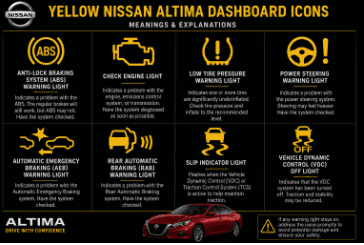
Anti-Lock Braking System (ABS) Warning Light
Dashboard icon looks like: The letters “ABS” inside a circle.
The ABS warning light briefly turns on when starting the vehicle as part of a system check. If it remains illuminated while driving, there may be a problem with the anti-lock braking system.
What to do:
- Drive carefully.
- Have the ABS system inspected.
- Remember that standard braking may still work, but anti-lock assistance may not be available.
Check Engine Light
Dashboard icon looks like: An engine-shaped symbol.
The check engine light is one of the most recognized Nissan Altima dashboard icons. It indicates that the vehicle computer has detected a possible engine or emissions-related issue.
Possible causes include:
- Loose or missing fuel cap.
- Emissions system problems.
- Engine performance issues.
What to do:
- Check that the fuel cap is properly tightened.
- Monitor whether the light is steady or flashing.
- Schedule a diagnostic inspection if the light remains on.
A flashing check engine light usually requires more immediate attention because it may indicate a serious engine problem.
Low Tire Pressure Warning Light
Dashboard icon looks like: An exclamation point inside a tire-shaped symbol.
This icon is part of the Tire Pressure Monitoring System (TPMS). It alerts you when one or more tires have low air pressure or when there may be a TPMS issue.
What to do:
- Check tire pressure.
- Inflate tires to the recommended level.
- Inspect for possible leaks or tire damage.
Maintaining proper tire pressure improves safety, fuel efficiency, and tire life.
Power Steering Warning Light
Dashboard icon looks like: A steering wheel with an exclamation point.
This icon indicates a possible issue with the power steering system. If the warning appears while driving, steering may become more difficult because power assistance may be reduced.
What to do:
- Drive carefully.
- Be prepared for increased steering effort.
- Have the power steering system inspected.
Automatic Emergency Braking (AEB) Warning Light
Dashboard icon looks like: Two vehicles approaching or making contact.
The AEB warning light relates to Nissan’s automatic emergency braking system. It may appear if the system is unavailable or temporarily unable to operate.
Possible causes include:
- Dirty or blocked sensors.
- Frost or fog on the windshield.
- Strong sunlight affecting the camera.
- High interior temperatures.
What to do:
Check that sensors and cameras are clean and unobstructed.
Rear Automatic Braking (RAB) Warning Light
Dashboard icon looks like: A vehicle backing toward an obstacle.
This warning light relates to the Rear Automatic Braking system, which helps detect objects behind the vehicle while reversing.
What to do:
- Confirm the system is turned on.
- Check for blocked sensors.
- Have the system inspected if the warning remains active.
Slip Indicator Light
Dashboard icon looks like: A vehicle with wavy lines underneath.
The slip indicator shows that the Vehicle Dynamic Control (VDC) system is working to maintain traction.
The light may blink when:
- Tires lose traction.
- The vehicle detects slippery road conditions.
What to do:
Reduce speed and drive cautiously, especially on wet or icy roads.
Vehicle Dynamic Control (VDC) OFF Light
Dashboard icon looks like: A slipping vehicle symbol with “OFF” underneath.
This icon appears when the VDC system has been manually turned off.
What to do:
- Turn the system back on if needed.
- If the light remains on unexpectedly, have the system checked.
VDC helps improve vehicle stability, especially during slippery driving conditions.
What Should You Do When a Nissan Altima Dashboard Icon Appears?
Seeing a warning symbol does not always mean there is a major problem, but every Nissan Altima dashboard icon provides important information about your vehicle.
When a dashboard light appears:
- Identify the symbol and color.
- Check your owner’s manual for specific information.
- Address red warning lights immediately.
- Schedule service for warning lights that remain illuminated.
Knowing what your Nissan Altima dashboard icons mean helps you make safer decisions and keep your vehicle running properly.